Subscription Box
Create customizable subscription boxes that allow customers to build their own recurring orders with flexible product selections and delivery frequencies. Boost customer satisfaction and increase average order value with personalized subscription experiences.
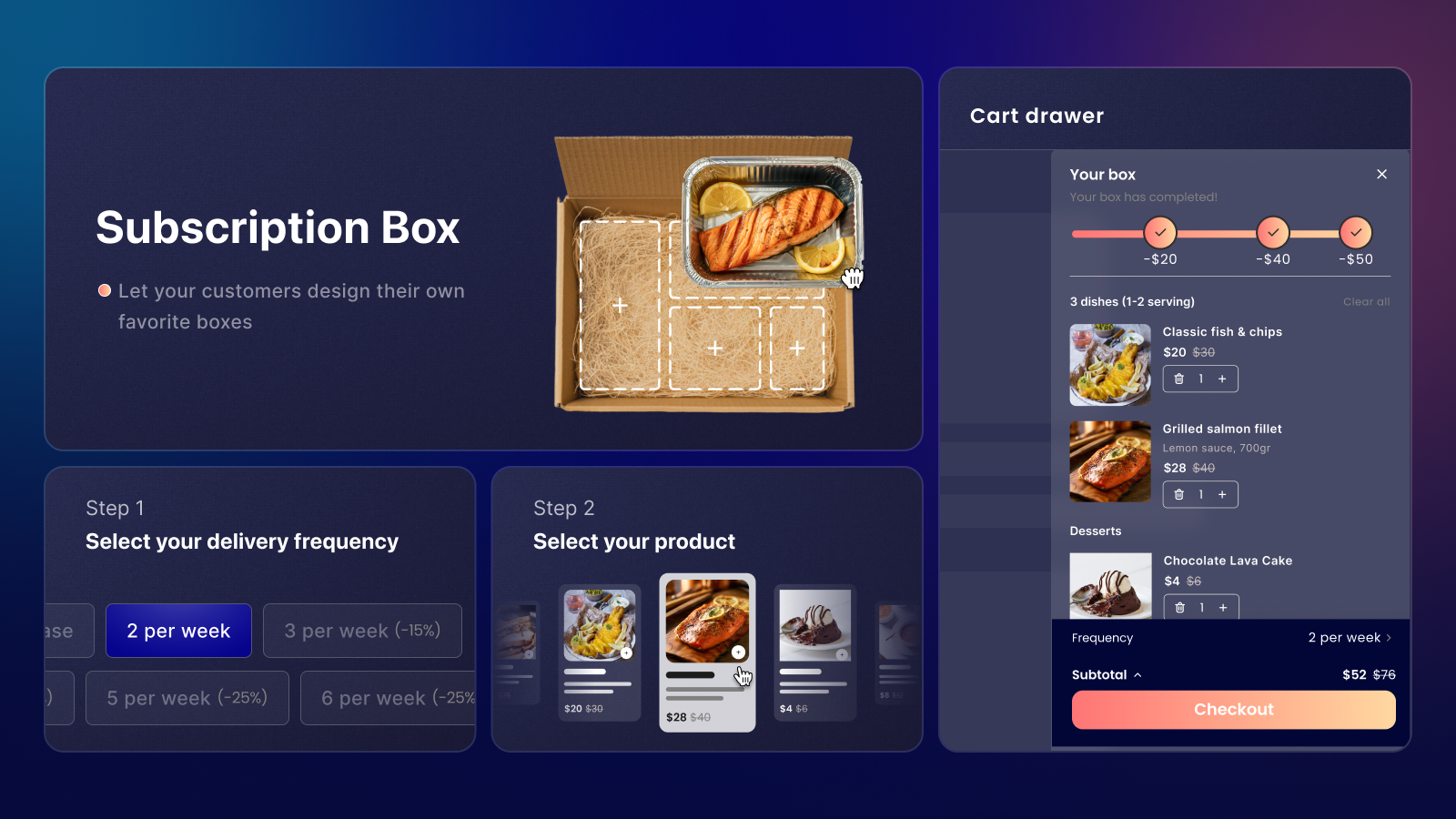
What is subscription box?
In today's competitive e-commerce landscape, customers expect personalized shopping experiences. Subscription Box is a powerful customization tool that transforms how your customers interact with your subscription offerings. This feature creates an intuitive interface where customers can build their own subscription boxes by selecting products, setting delivery frequencies, and managing quantities all in one place.
Why use subscription box?
Transform your subscription business by offering a more flexible and engaging subscription experience:
1. Build stronger recurring revenue
Let customers customize their subscriptions with products they truly want. When subscribers can personalize their boxes, they're more likely to stay subscribed longer and maintain higher-value subscriptions.
2. Enhance the subscription experience
Give subscribers the freedom to modify their product mix. Instead of receiving the same items every time, they can adjust their selections to keep their subscription fresh and exciting.
Empower subscribers to manage their own subscription boxes. They can easily adjust products, quantities, and delivery schedules without contacting support, leading to higher satisfaction.
3. Optimize subscription management
Set clear rules for minimum and maximum quantities in subscription Get deeper insights into subscriber preferences and behavior. Understanding what products customers choose for their boxes helps you better predict inventory needs for recurring orders.
How to set up subscription box
Create your subscription box offering in four straightforward steps:
Step 1: Create your first box
Purpose: Establish the basic structure of your subscription box
Actions required:
- Go to Settings > Subscription box
- Click "Create box"
- Name your box
- Set status (Active/Inactive)
- Save initial settings
Step 2: Configure product settings
Purpose: Define available products and pricing structure
Product settings: In each step, there will be a Step Setting section where you can edit basic step UI like
- Whether to show One-time purchase option
- Step labels
- Step layout
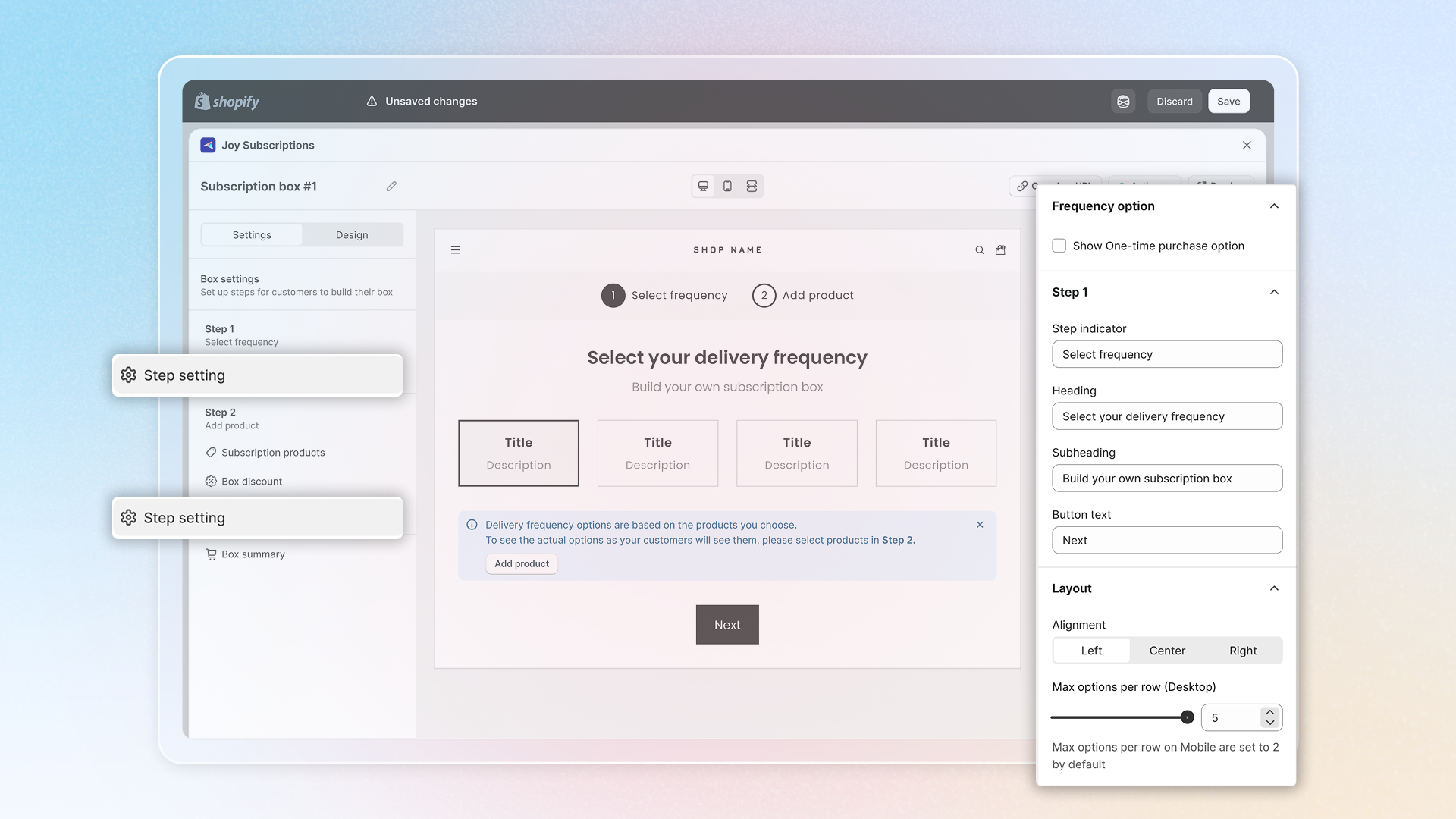
Product organization: Step 2, in particular, has some more things to set up
- Choose organization method:
- Single product list
- Category-based organization
- Add products to your box
- Set quantity limits
Discount rules:
- Select discount type
- Percentage off
- Fixed amount off
- Create discount tiers
- Set minimum requirements
Key consideration: Balance variety with manageable inventory
Step 3: Customize the design
Purpose: Create a branded, user-friendly interface
Layout Selection:
- Choose layout style:
- Two-page format
- Single-page format
- Configure step indicators
- Set navigation order
Visual elements:
- Customize colors and styles
- Adjust product display options
- Set up mobile view
Key consideration: Maintain consistent branding throughout
Step 4: Set Up Customer Experience
Purpose: Ensure smooth subscription management
Essential Settings:
- Configure box summary display
- Set up progress indicators
- Customize notification messages
Customer Communications:
- Edit default messages
- Configure confirmation emails
- Set up reminder notifications
Key Consideration: Focus on clarity and ease of use
You now have the knowledge to create an effective subscription box offering. You've learned how to set up the basic structure, configure products and pricing, customize the design, and optimize the customer experience.