Subscriptions
Step 1: Access the Subscriptions Section
Begin by clicking on "Subscriptions" in the menu bar.
Here, you will find a comprehensive list of all the subscriptions your customers have signed up for. To locate a specific subscription, you can search by Product Name, Product SKU, customer email...
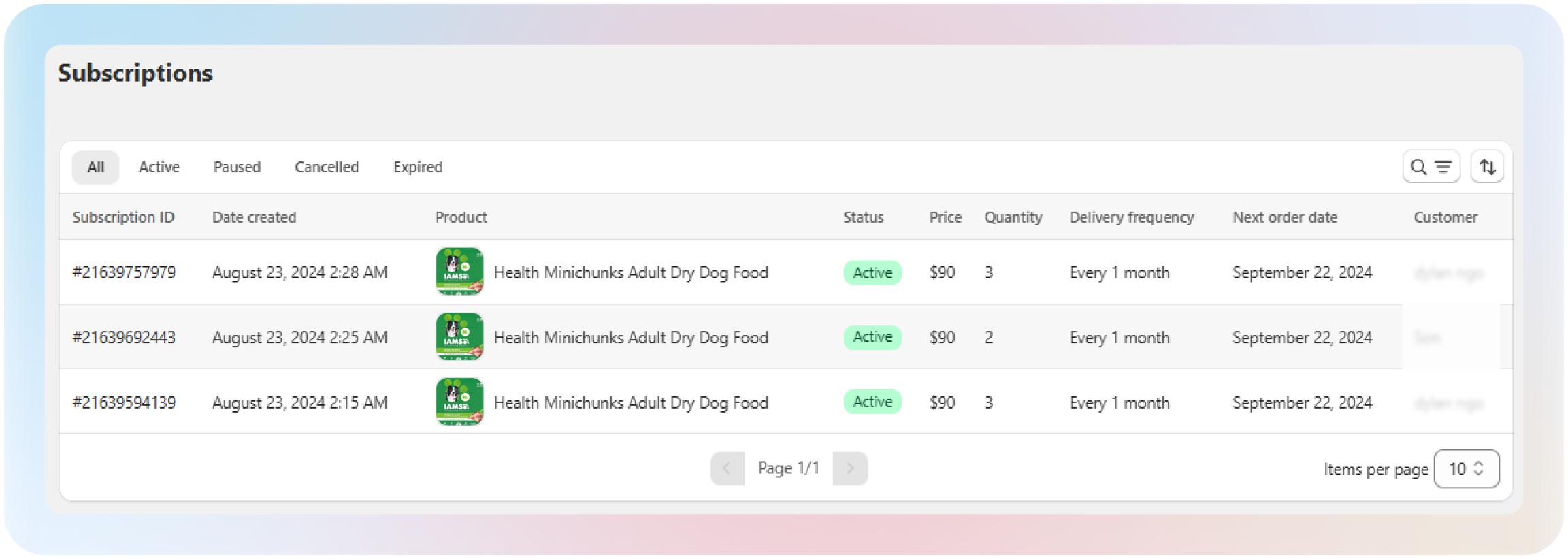
You can also filter subscriptions by their current status:
- Active
- Paused
- Cancelled
- Expired
Step 2: View Subscription Details
To delve into a specific subscription, simply click on the Subscription ID.
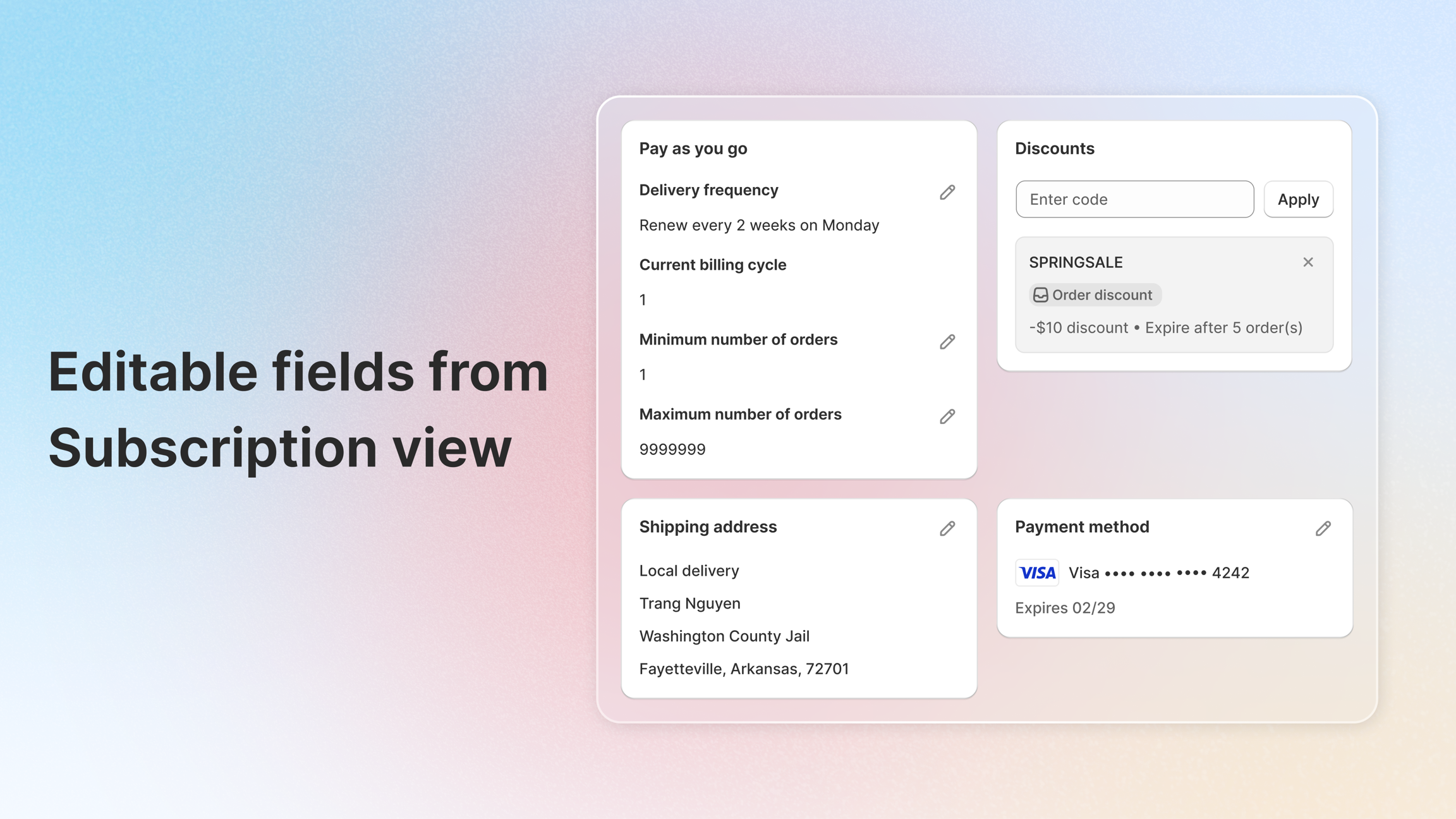
On this detailed view page, you can review all relevant subscription information, including:
- Delivery Frequency, Billing Cycle, and any Advanced Rules you've configured. (Can edit)
- Applied Discounts. (Can add/remove)
- The Upcoming Order Date. (Cannot edit here)
- The Total Bill for the subscription. (Cannot edit here)
- The Payment Method used. (Can edit)
- The Shipping Address where the orders will be sent. (Can edit)
Order notes
You and your customers can add notes to upcoming subscription orders — for delivery instructions, product requests, or any special preferences. Notes are visible to both sides and automatically included in the Shopify order when charged.
To learn more about how order notes work, including signup notes and the "Apply to all upcoming orders" option, see Order Notes (opens in a new tab).