Order Notes
Introduction
Order Notes lets customers and merchants attach notes to upcoming subscription orders. Notes are visible to both sides and automatically included in the Shopify order when charged — so your fulfillment team always sees the customer's instructions.
Understanding order notes
Signup note — A note added during checkout becomes the default for all future orders in that subscription.
Order-level note — A note added to a specific upcoming order. Editable anytime before the order is charged.
When editing, check Apply to all upcoming orders to set the new note as default for all future orders. Leave it unchecked to only update the current order.
How to add a note from admin
Step 1: Go to Joy Subscriptions → Subscriptions and open the subscription you want to add a note to.
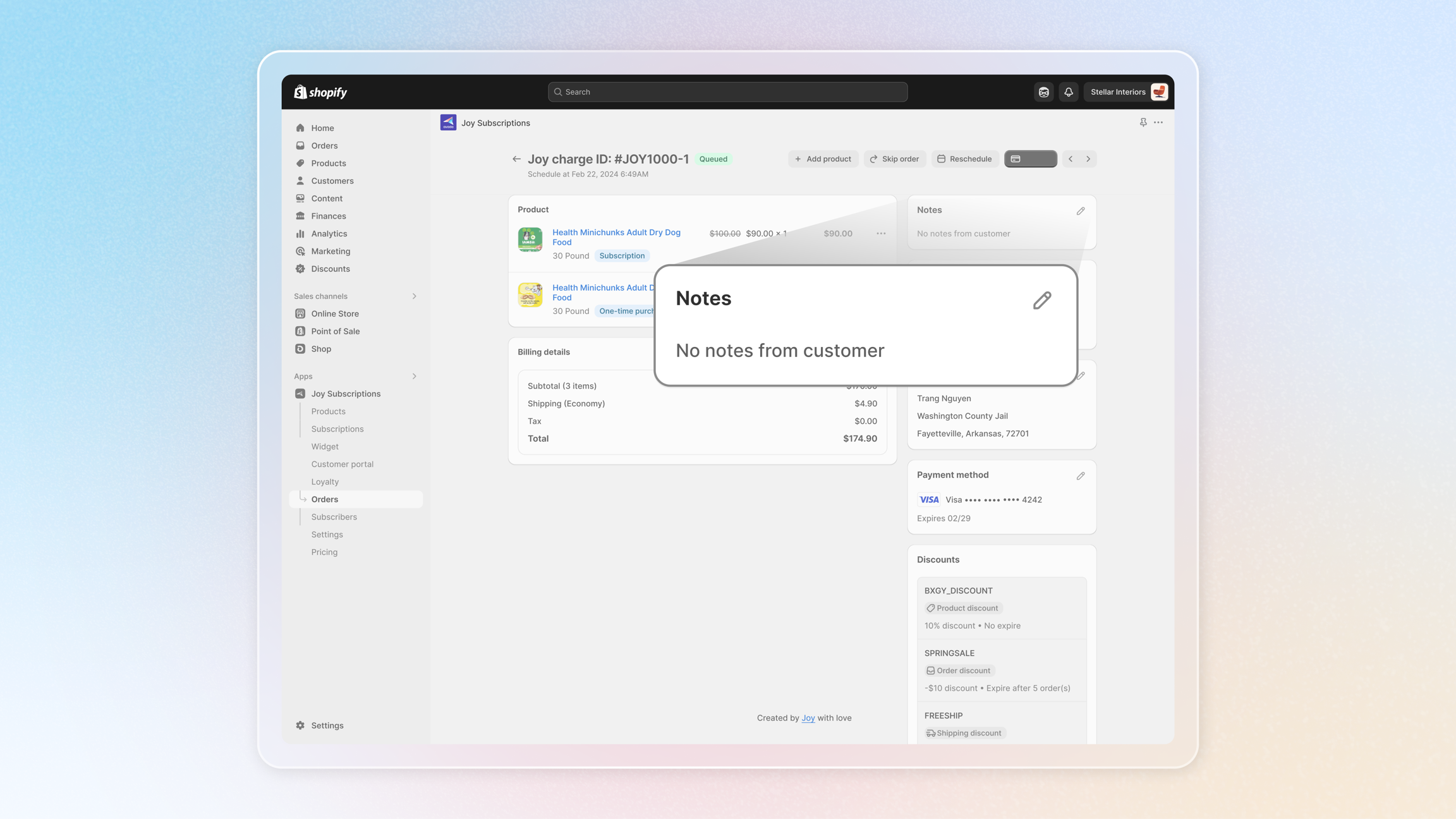
Step 2: In the sidebar on the right, find the Notes section. It shows the note for the nearest upcoming order. If no note exists, you will see "No notes from customer". Click View order to open the upcoming order detail page.
Step 3: On the upcoming order detail page, click the pencil icon next to Notes to open the note editor.
Step 4: Enter your note in the text field (up to 5,000 characters). If you want this note to apply to all future orders in the subscription, check Apply to all upcoming orders. Then click Save.
The note is saved and immediately visible to the customer in their Customer Portal.
How customers add notes
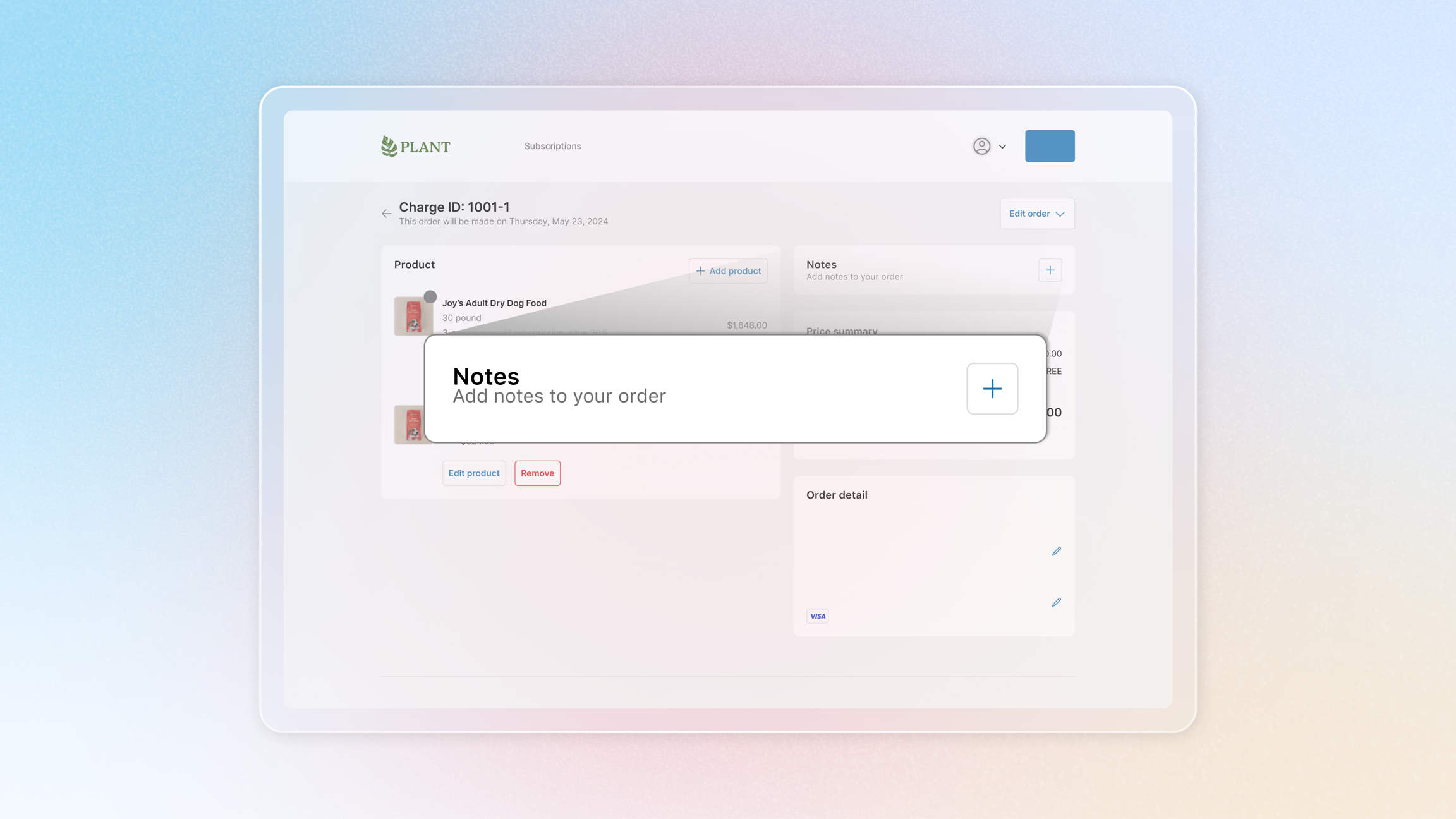
Customers can add or edit notes from their Customer Portal. When they open an upcoming order, they see a Notes section with a "+" button (if no note exists) or a pencil icon (if a note already exists).
After clicking, they enter their note and choose whether to apply it to all upcoming orders. Once saved, the note appears in your admin immediately.
How notes work with Shopify orders
When an upcoming order reaches its scheduled charge date, Joy Subscriptions creates a Shopify order and automatically includes the note in the Shopify order details. Your fulfillment team can see the note when viewing or exporting orders from Shopify — no extra steps needed.
Tips and best practices
- Signup notes carry forward. If a customer adds a note during checkout, it becomes the default for every future order in that subscription. You do not need to copy it manually.
- Use "Apply to all" for permanent changes. When a customer updates their delivery instructions for good (e.g., a new gate code), check Apply to all upcoming orders so every future order picks up the change.
- Leave it unchecked for one-time requests. If a customer has a special request for just one delivery (e.g., "Leave at back door this week"), do not check the box — the note only applies to that single order.
- You can clear a note by saving it empty. If a note is no longer needed, open the editor, clear the text, and click Save. To clear notes from all future orders, check Apply to all upcoming orders before saving.
Overall
Order Notes bridges the gap between your customers' requests and your fulfillment process. With signup notes that carry forward automatically, flexible per-order editing, and seamless integration into Shopify orders, you can ensure every delivery reflects your customers' preferences — without any manual work.