Win backs
This article shows you how to use Win backs to bring cancelled subscribers back automatically, with emails they can accept in one click.
Win backs is available on the Starter plan and higher. On the Free plan, the page shows an Upgrade plan button instead of your flows.
Introduction
When a subscriber cancels, that recurring revenue leaves with them. But a cancellation doesn't have to be goodbye. Win backs sends automated emails that invite cancelled subscribers back, with an offer they can accept in one click: no checkout needed.
To help you start fast, Joy Subscriptions has already built two flows for the two most common reasons subscribers leave: the price, and the product. Review them, adjust the offers, and turn them on.
Understanding win back flows
A win back flow reads from left to right. It's built from three blocks:
- Trigger — decides when the flow starts. There are two:
- After subscription is cancelled runs every time a subscription is cancelled.
- After subscriber churned runs only when the customer has no active subscription left.
- Actions — what happens next. There are four:
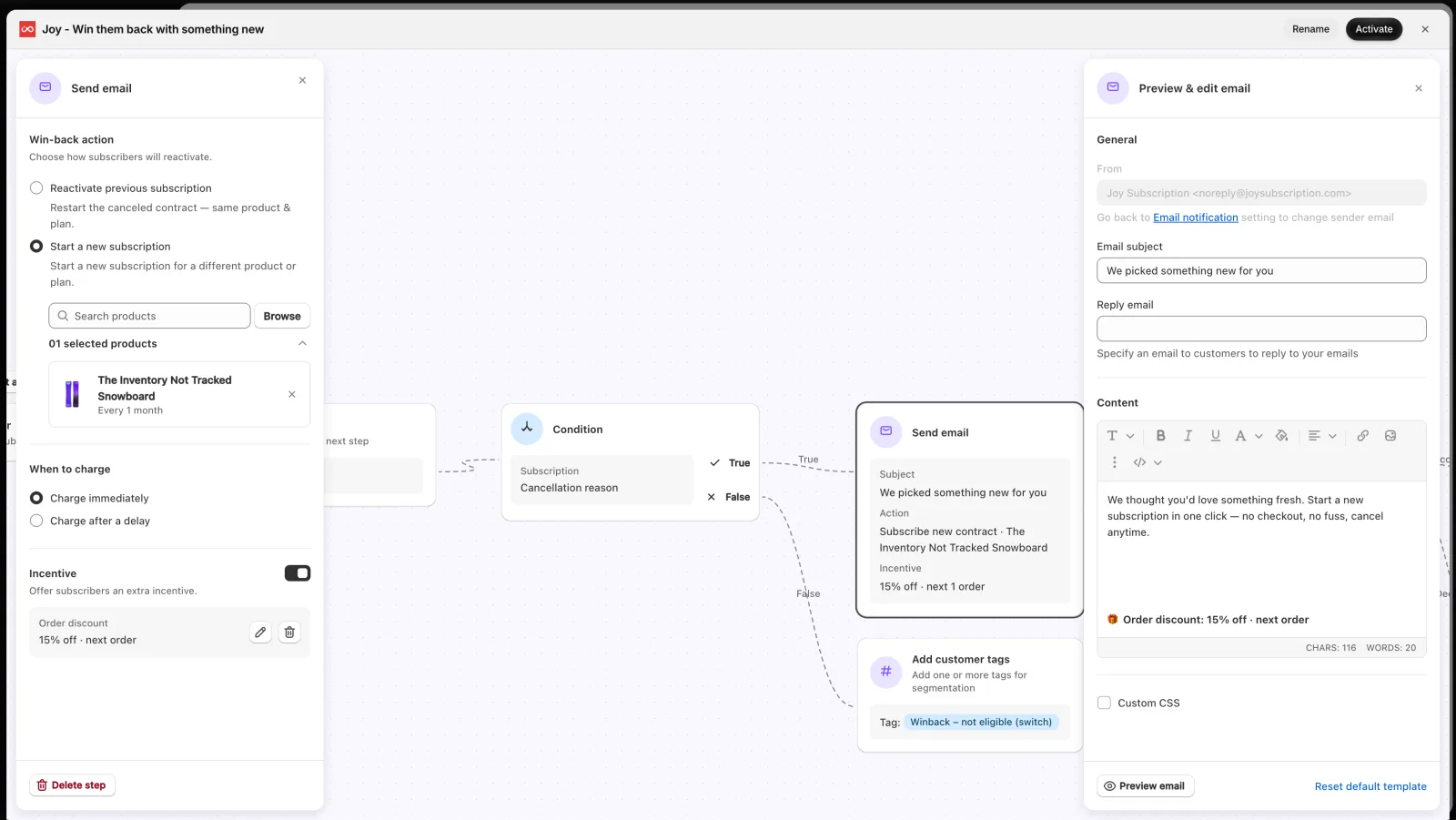
- Send email invites the subscriber back with an offer. In Win-back action, choose Reactivate previous subscription (restart the cancelled subscription, same product and plan) or Start a new subscription (a different product you pick). You can add an Incentive: Free gift, Order discount, or Discount code.
- Add customer tags labels the subscriber in Shopify, so you can segment them later.
- Wait adds a delay before the next step.
- Subscriber response waits for the subscriber to accept the offer, then sends them down the Accepted or Declined path. If they don't respond before the timeout, they continue on the Declined path.
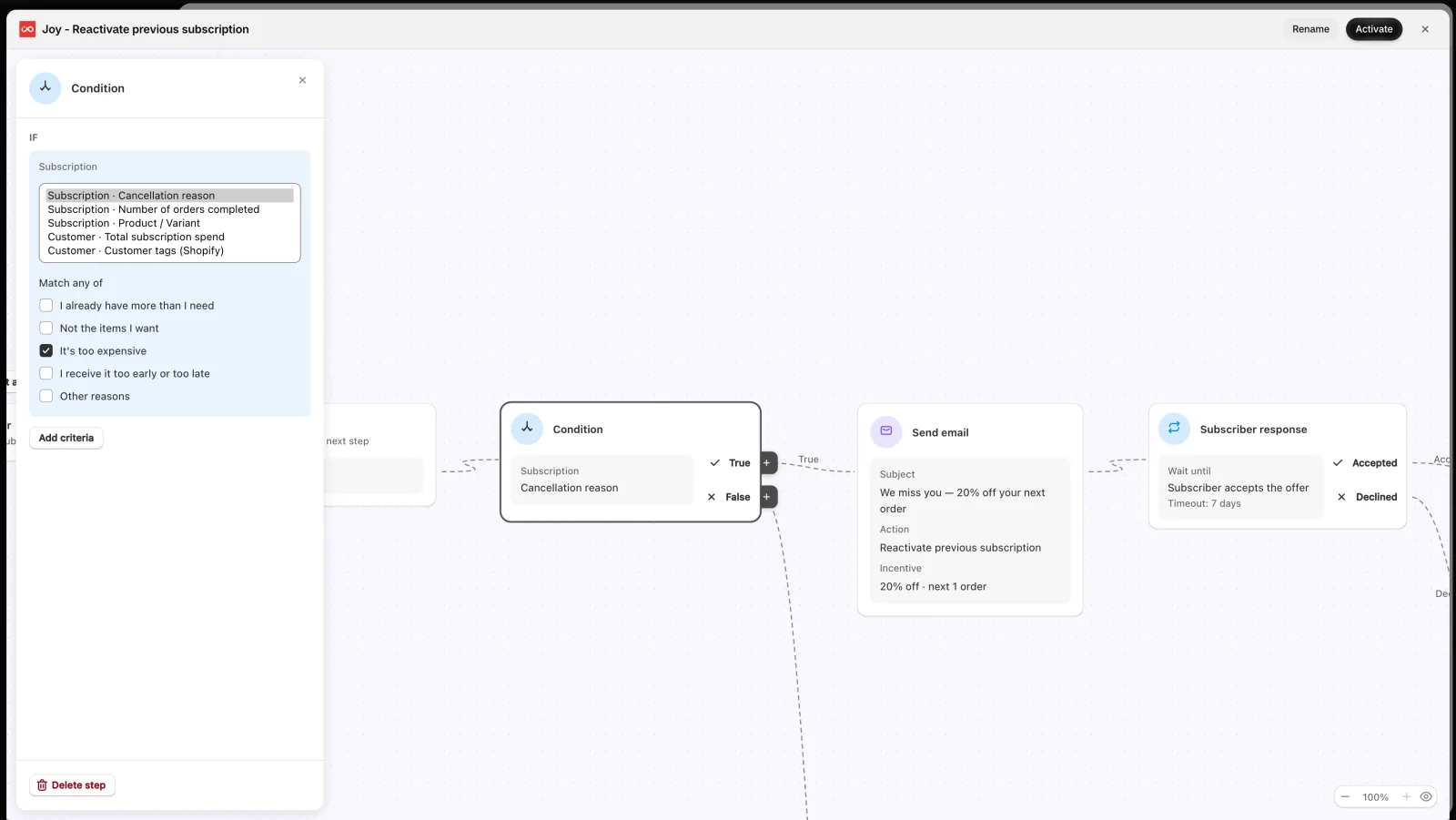
- Conditions — split the flow into two paths, True and False. You can check the Cancellation reason, Number of orders completed, Product / Variant, Total subscription spend, or Customer tags (Shopify).
The Cancellation reason condition uses the reasons from your Cancellation flow. Reasons are only collected when Customer retention flow is turned on, not in Cancel immediately mode.
The two ready-made flows
Both flows are created for you and start as Inactive.
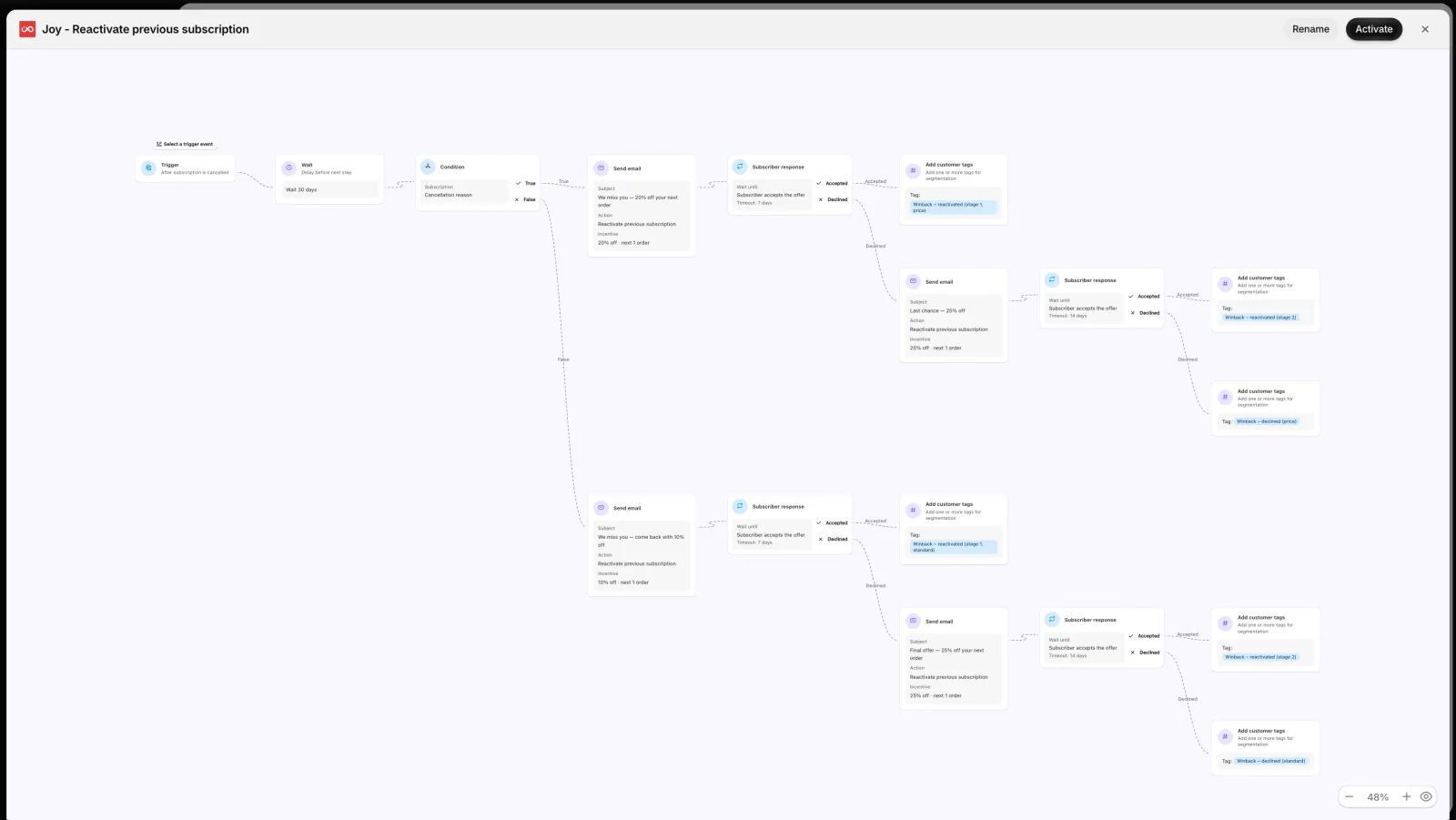
Joy - Reactivate previous subscription — for subscribers who left because of the price.
- Starts After subscription is cancelled, waits 30 days, then checks the cancellation reason.
- If the reason is It's too expensive: an email reactivates their previous subscription with 20% off the next order. If they don't accept within 7 days, a last chance email offers 25% off, with 14 more days to accept.
- For any other reason: a smaller 10% off offer first, then a final 25% off.
- Every outcome adds a customer tag, so you always know who came back.
Joy - Win them back with something new — for subscribers who liked your store, but not the product.
- Starts After subscriber churned, waits 30 days, then checks if the reason is I already have more than I need or Not the items I want.
- If so: an email offers to Start a new subscription with a product you choose and 15% off. If they don't accept within 7 days, they get 25% off, and finally an email with a Free gift.
- Subscribers who left for other reasons are only tagged, with no email.
How to set up a win back flow
Open Win backs
In the Joy Subscriptions menu, click View more, then Win backs.
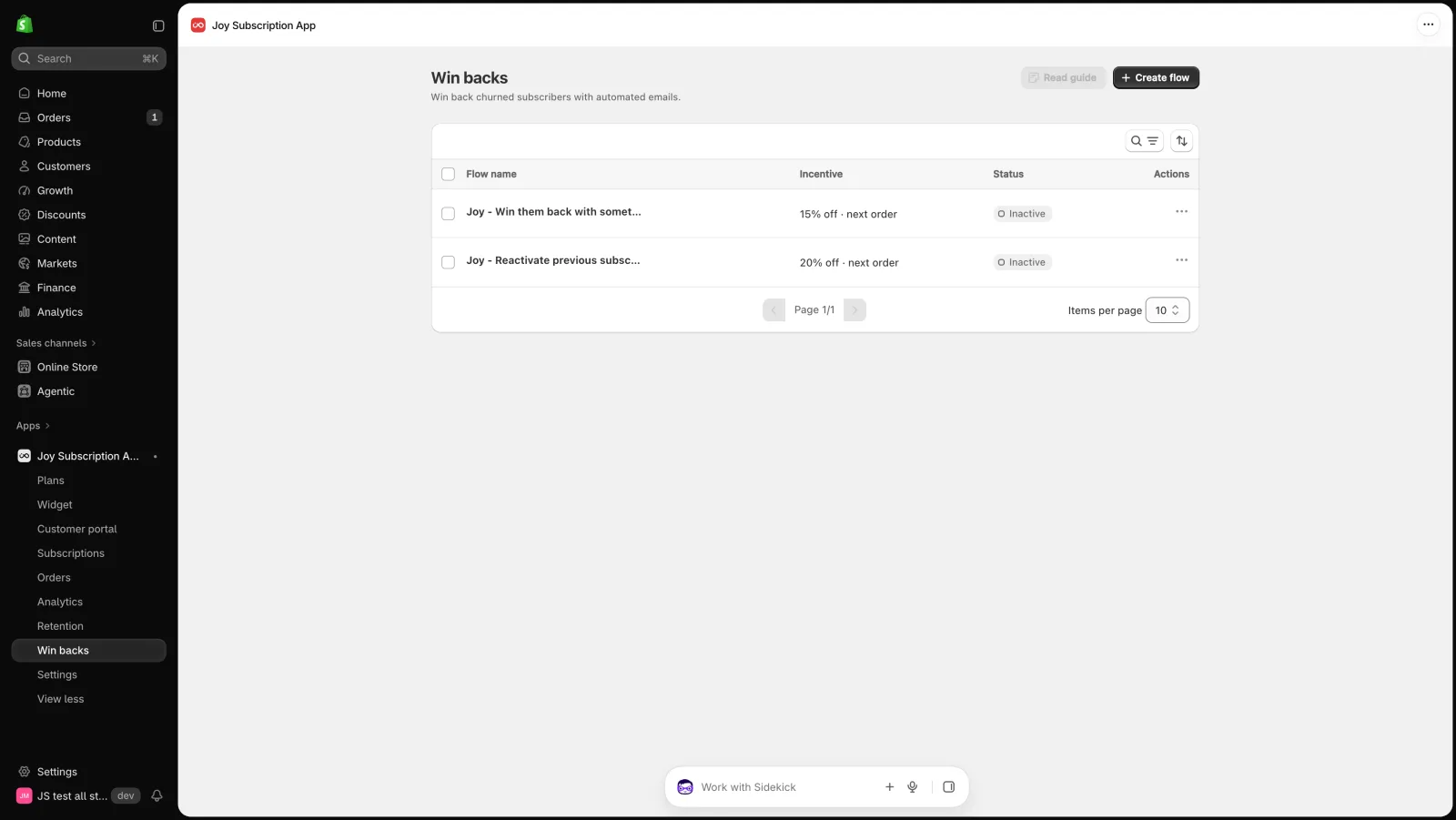
Open a flow
Click a flow name, for example Joy - Reactivate previous subscription. Then click Edit workflow to open the flow on the canvas.
Review the trigger
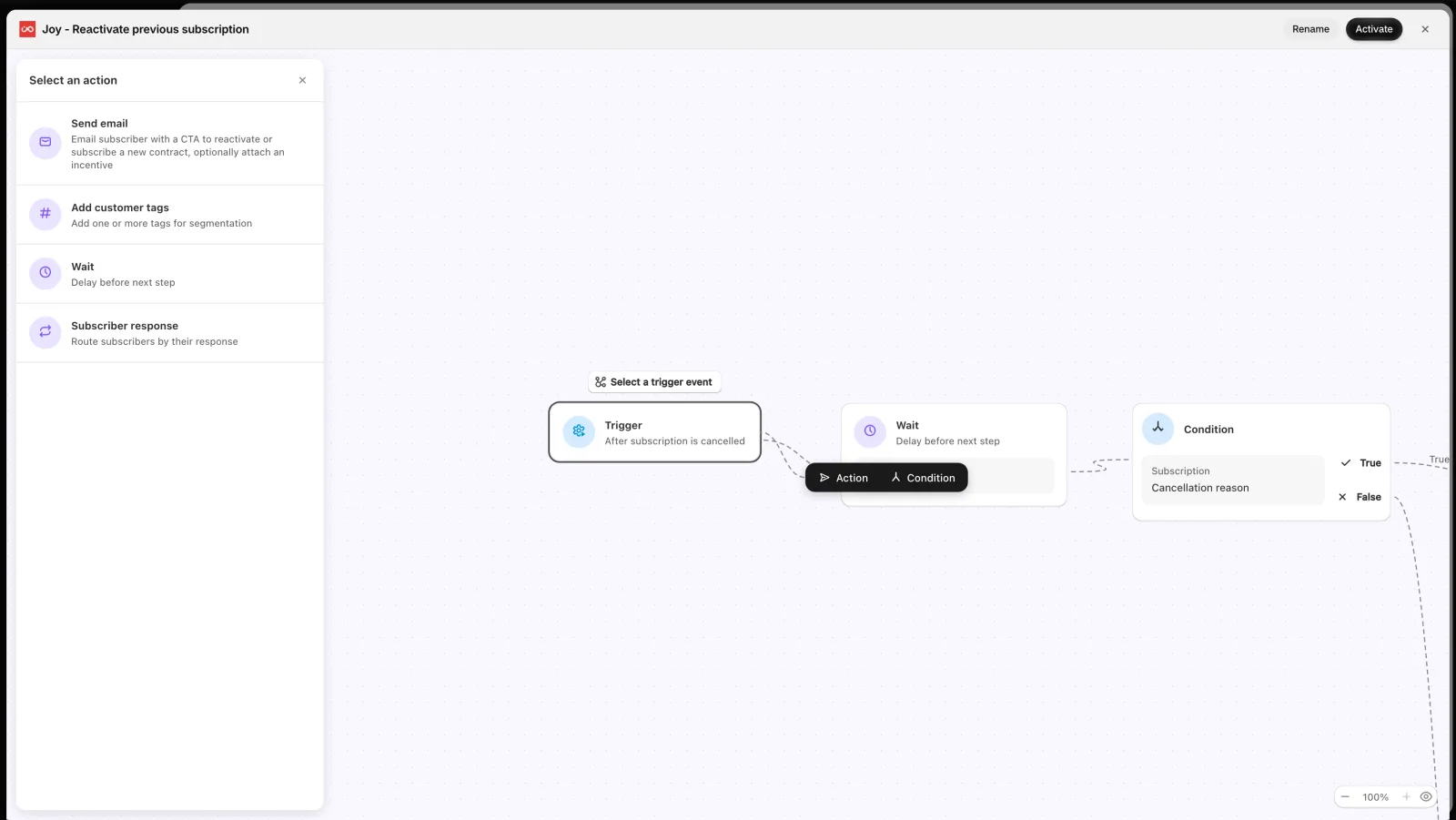
Click the Trigger step and choose the trigger event that fits this flow.
Review the condition
Click the Condition step to see which subscribers go down the True path. Click Add criteria to add more checks.
Review each email and offer
Click a Send email step. Check the Win-back action, the product (for Start a new subscription), When to charge, and the Incentive. Click Preview & edit email to change the email subject and content.
Add a step (optional)
(Optional) Select any step on the canvas, then click Action or Condition to add a new step after it.
Activate the flow
Click Save if you made changes, then click Activate. Your flow is now live and starts with the next cancellation that matches the trigger.
Want to build your own flow from scratch? Click Create flow on the Win backs page.
How to track results
Click a flow name on the Win backs page to open its results page.
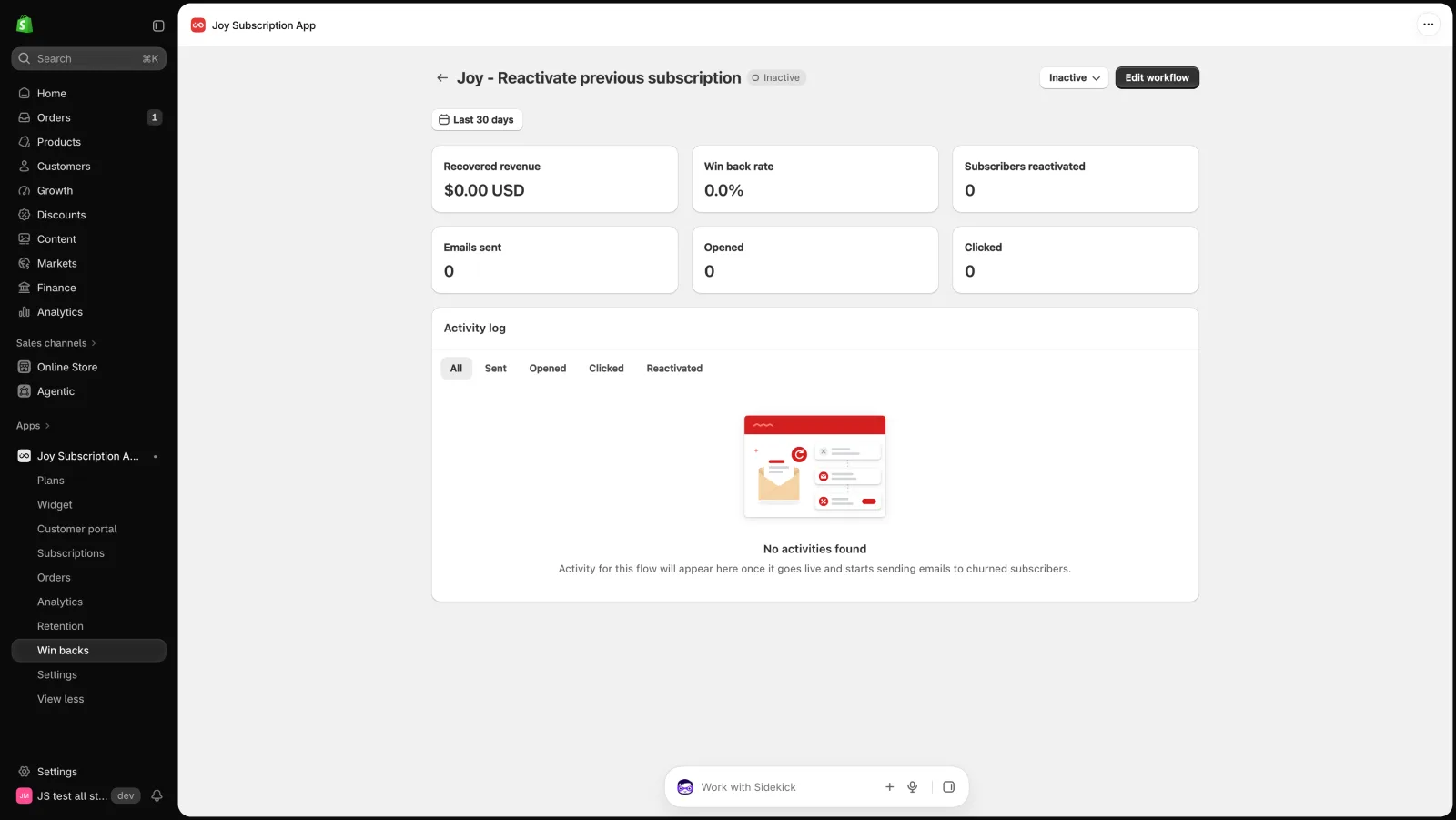
- The cards at the top show Recovered revenue, Win back rate, Subscribers reactivated, Emails sent, Opened, and Clicked.
- The Activity log lists every subscriber the flow reached. Use the Sent, Opened, Clicked, and Reactivated tabs to filter.
Overall
Win backs turns a cancellation into a second chance. Start with the two ready-made flows, review the products and offers, and activate them. Then check each flow's results page to see how many subscribers you bring back.