How to Update Payment Gateways
Switch your store to a supported payment gateway in your Shopify payment settings, then click "Refresh Status" in Joy Subscriptions to confirm the update.
To use third-party subscription apps like Joy Subscriptions, your store must be using one of the following payment gateways: Shopify Payments, PayPal Express, Authorize.net, Stripe, or Adyen on Shopify. If your store does not use one of these payment gateways, your customers won’t be able to purchase subscriptions.
To update your payment gateways, follow these steps:
Open the Joy Subscriptions Dashboard
Click the Warning Banner
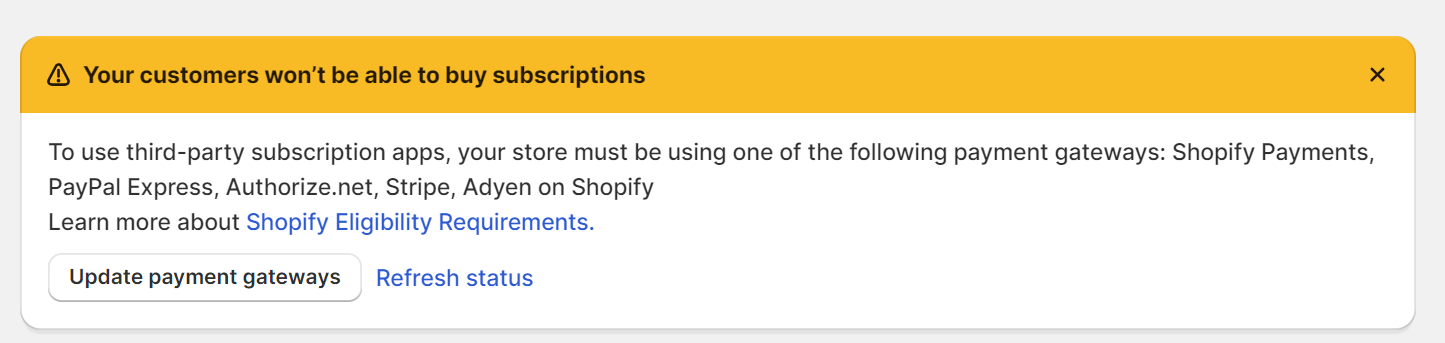
If your payment gateway is not supported, you will see a warning banner at the top of the Joy Subscriptions dashboard. Click on the banner and select "Update Payment Gateways".
Navigate to Shopify Payment Settings
You will be redirected to the payment settings in your Shopify admin.
Update Payment Gateways
- In the payment settings, configure your store’s payment gateway to ensure it is one of the supported options: Shopify Payments, PayPal Express, Authorize.net, Stripe, or Adyen on Shopify.
- Make sure all payment information is correctly entered and up to date.
Save Changes
After updating the payment gateway settings, save your changes.
Return to Joy Subscriptions
Refresh Status
Click "Refresh Status" on the warning banner to check if the payment gateway update was successful. If the update is successful, the warning banner should disappear.

By ensuring your store is using a supported payment gateway, you enable your customers to purchase subscriptions without any issues.